Buying an iPad is more than just picking a color and storage size; it's an investment in a specific ecosystem, a set of capabilities, and a future path for your digital life. And frankly, knowing your iPad generation isn't just for tech enthusiasts – it’s a critical piece of information that profoundly impacts everything from the apps you can run and the accessories you can use, to its resale value and how long it remains a useful, supported device. Ignore it, and you could find yourself with a tablet that doesn't quite fit your needs or, worse, an expensive paperweight sooner than you'd like.
At a Glance: Why Your iPad's Generation is Key
- Software Compatibility: Determines if your iPad can run the latest iPadOS and modern apps.
- Accessory Match: Ensures you buy the correct Apple Pencil, keyboard, or case.
- Performance Expectations: Gives you a realistic idea of speed, graphics, and multitasking abilities.
- Support & Updates: Impacts how long Apple will provide security patches and software upgrades.
- Resale Value: Helps you accurately price your device if you decide to sell or trade up.
- Future-Proofing: Guides decisions on how long your device will meet your needs.
More Than Just a Number: The Real Impact of Your iPad's Age
You might think an iPad is just an iPad, but beneath the sleek aluminum lies a complex story of innovation, and knowing its chapter is crucial. Each generation represents significant leaps in processing power, display technology, and feature sets. This isn't just about bragging rights; it's about practical functionality. An iPad from 2013, for instance, operates in a completely different digital landscape than one released last year.
Understanding this lineage empowers you. It lets you confidently assess a used iPad’s true worth, ensure your new accessory actually works, or even understand why certain apps won't install. It’s the insider knowledge that turns a casual purchase into a smart, informed decision. If you're wondering how to even start this identification process, we've got you covered with a detailed guide on how to find your iPad generation.
Decoding Your Device: How to Pinpoint Your iPad's Generation
Before you can appreciate why it matters, you need to know what you have. Fortunately, Apple provides clear, albeit sometimes hidden, identifiers for every iPad.
Method 1: The Model Number (Your Most Reliable Guide)
Think of the 'A####' model number as your iPad's unique genetic code. It’s the most precise way to identify its exact generation, variant (Wi-Fi only vs. Cellular), and release year.
Where to Find It:
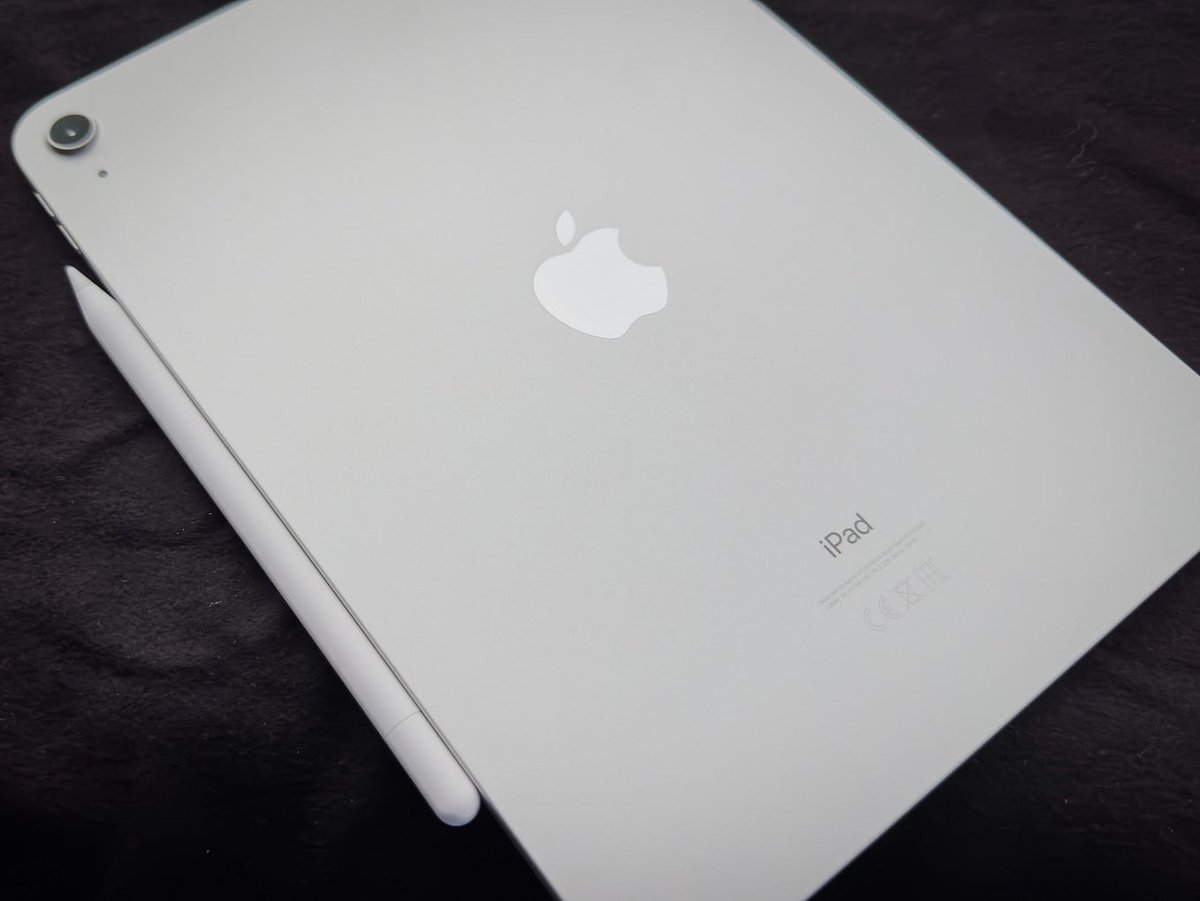
- On the back of the device: Flip your iPad over. Near the bottom, in tiny print, you'll see "Model" followed by an 'A' and four digits (e.g., A1822). This is your golden ticket.
- In Settings: Go to Settings > General > About. Here, you'll see an entry called "Model Number." Initially, it might display a longer, alphanumeric string (like 'MXXC2LL/A'). Tap this string once, and it will magically transform into the 'A####' format you need.
What to Do Next:
Once you have that 'A####' number, a quick search on Apple's official support pages or a reputable database like EveryMac.com will tell you everything. You'll instantly know if you're holding an iPad (5th generation) from 2017 or an iPad Air (5th generation) from 2022.
Examples to Guide You:
- A1474: This signals an iPad Air (1st generation), released in 2013. A venerable classic.
- A1822 / A1823: These point to an iPad (5th generation) from 2017, with Wi-Fi and Cellular variants, respectively.
- A2072: This identifies an iPad (10th generation), a recent addition from 2022.
- A2588, A2589, A2591: These belong to the iPad Air (5th generation).
- A2378, A2461, A2379, A2462: These signify an iPad Pro 12.9″ (5th generation), a powerful modern tablet.
Method 2: The Serial Number (Apple's Direct Line)
The serial number is another unique identifier, essentially your iPad’s fingerprint. While longer than the model number, it's just as effective.
Where to Find It:
- In Settings: Navigate to Settings > General > About. The serial number is listed there.
- Original Packaging: If you still have the box, the serial number is printed on a sticker.
What to Do Next:
Head over to Apple's official "Check Coverage" or "My Support" page and enter your serial number. Apple's system will directly tell you the exact model, generation, and even its warranty status. Be cautious about using third-party serial number checkers; always prioritize official Apple channels for accuracy and security.
Method 3: Visual Identification & Hardware Cues (The Educated Guess)
While less definitive, certain physical traits can give you a strong indication of your iPad's vintage. These are great for quick assessments, especially if the device isn't powered on.
- The Home Button:
- Physical Home Button: If it has a clickable physical button below the screen, it’s generally an older model (pre-2018 iPad Pro, pre-2020 iPad Air).
- No Home Button, Edge-to-Edge Display: This points to newer, more premium models like the iPad Pro (2018 onwards), iPad Air (4th Gen and later), or the iPad (10th Gen).
- Touch ID on Side Button: This specific placement, often found on the top edge, is a signature of models like the iPad Air (4th Gen and 5th Gen) and iPad mini (6th Gen).
- Ports and Connectors:
- Lightning Port: The smaller, reversible oval port. Common on older iPads up to the iPad Air (3rd Gen) and iPad (9th Gen).
- USB-C Port: A slightly larger, reversible oval port. This is a hallmark of the iPad Pro (2018 and later), iPad Air (4th Gen and later), iPad mini (6th Gen), and iPad (10th Gen). Its presence usually signifies a more modern device.
- Design & Size:
- Thicker Bezels & 9.7-inch Display: This design screams "early iPad." The classic look persisted through several generations (1st to 6th Gen).
- Slimmer Bezels & Larger Displays (10.2-inch, 10.9-inch, 11-inch, 12.9-inch): These indicate a more contemporary design language, typical of newer models, offering more screen real estate in a similar or smaller footprint.
- Display Technology: While hard to distinguish visually without comparison, the evolution from standard LCD to Retina, Liquid Retina, and ProMotion displays (with higher refresh rates) has been significant. Generally, "Retina" is better, "Liquid Retina" is even better, and "ProMotion" is the best for fluidity.
- Advanced Features:
- Face ID: If you unlock your iPad by looking at it, you have an iPad Pro (2018 or later).
- LiDAR Scanner: A small black circle next to the camera lenses on the back. Only found on iPad Pro models (2020 and later), enhancing augmented reality and low-light photography.
- Multiple Camera Lenses: Like on iPhones, multiple lenses (wide and ultra-wide) are reserved for the higher-end iPad Pro models.
A Quick Tour Through iPad History: Key Milestones by Generation
To further aid your visual identification and understanding, let's briefly highlight some defining traits across different iPad lines:
- The Original iPad (1st Gen, 2010): The one that started it all. Thick, heavy, 9.7-inch screen, large bezels, no cameras. Iconic, but firmly a relic.
- iPad 2 (2011): Thinner, lighter, gained front and rear cameras. A step forward in design.
- iPad (3rd Gen, 2012): The first Retina display iPad. A major leap in screen clarity.
- iPad (4th Gen, 2012): Introduced the Lightning connector, replacing the wider 30-pin dock.
- iPad Air (1st Gen, 2013): True to its name, significantly thinner and lighter than previous standard iPads. Model number A1474 is a dead giveaway.
- iPad (5th Gen, 2017): Brought Retina display and A9 chip at a more budget-friendly price point, reviving the standard iPad line.
- iPad (6th Gen, 2018): Crucially, the first budget iPad to support the Apple Pencil (1st generation).
- iPad Pro (1st Gen, 2015): Introduced the "Pro" moniker, larger screen options (12.9-inch), and Apple Pencil (1st gen) support.
- iPad Pro (2018 Models - 11-inch & 12.9-inch 3rd Gen): A massive redesign. No Home button, Face ID, USB-C, and support for the Apple Pencil (2nd generation). A clear modern benchmark.
- iPad Air (3rd Gen, 2019): A 10.5-inch screen, A12 Bionic chip, and Apple Pencil (1st gen) support.
- iPad Air (4th Gen, 2020): Adopted the modern, Pro-like design (no Home button, Touch ID in power button, USB-C) but at a lower price point than the Pro. Supports Apple Pencil (2nd gen).
- iPad (10th Gen, 2022): Redesigned to match the modern aesthetic, 10.9-inch display, USB-C, and A14 Bionic chip.
This quick overview underscores how varied the iPad landscape is. Each generation often ushers in features that redefine what the device can do.
The Concrete Benefits: Why This Knowledge Empowers You
Now, let's circle back to the 'why.' Knowing your iPad generation isn't just trivia; it translates directly into practical advantages for ownership, buying, and selling.
1. Unlocking the Right Accessories (No More Guesswork!)
Perhaps the most frustrating scenario is buying an accessory only to find it doesn't fit or function with your iPad. This is where generation knowledge becomes a superpower.
- Apple Pencil: The original Apple Pencil works with older iPads that have a Lightning port and specific newer models (like the iPad 9th Gen). The Apple Pencil 2, however, magnetically attaches and charges only with iPads featuring flat edges and USB-C (iPad Pro 2018+, iPad Air 4th Gen+, iPad mini 6th Gen+). Confusion here is rampant, but your generation number clears it up instantly. Choosing the correct one depends entirely on your model, so understanding your generation is key to choosing the right Apple Pencil.
- Smart Keyboards & Folio Cases: These are precisely cut and connector-aligned for specific iPad models and generations. A Smart Keyboard Folio for an 11-inch iPad Pro (3rd Gen) simply won't fit a 10.9-inch iPad Air (4th Gen) or a 10.2-inch iPad (9th Gen).
- Protective Cases: Even basic protective cases are often model-specific, accommodating different camera layouts, button placements, and speaker grills.
2. Mastering Software Updates and Compatibility
Apple's commitment to supporting older devices is commendable, but it's not infinite. Each year, with a new version of iPadOS, some older models inevitably get left behind.
- Feature Access: Newer iPadOS features often rely on specific hardware (e.g., advanced multitasking features needing powerful chips). Knowing your generation tells you whether your iPad will gain these new capabilities.
- Security Patches: While Apple generally provides security updates for quite a long time, eventually older devices cease receiving even these critical patches, leaving them more vulnerable.
- App Store Access: Over time, app developers update their apps to take advantage of new iPadOS versions and hardware. If your iPad can't update its OS, you may find yourself unable to download or update certain apps, or they might not perform optimally. If you're wondering if your older iPad can still keep up, knowing its generation is step one for checking iPadOS update compatibility.
3. Gauging Performance and Longevity
The chip inside your iPad (A-series, and more recently, M-series for Pro models) dictates its raw power. This directly impacts how smoothly apps run, how quickly tasks are completed, and its overall responsiveness.
- Demanding Apps: If you plan to edit 4K video, create complex 3D models, or play graphically intensive games, you'll need a newer iPad Pro or Air with a more powerful chip. An older generation simply won't keep up.
- Multitasking: Newer iPads excel at running multiple apps side-by-side without a hitch. Older models might struggle, leading to slowdowns and frustrating lag.
- Future-Proofing: A newer generation iPad, especially one with an M-series chip, offers more headroom for future software demands and new app features, extending its usable life significantly. This foresight helps you ensure you’re investing in the best iPad accessories for productivity that can truly enhance your device for years.
4. Smart Buying and Selling Decisions
Whether you're in the market for a new-to-you iPad or looking to offload your current one, generation knowledge is your most powerful negotiation tool.
- For Buyers (New or Used):
- Value Assessment: Avoid overpaying for an older model disguised as something newer. A 5th-generation iPad (2017) might look similar to a 6th-generation (2018) at first glance, but the latter's Apple Pencil support adds significant value.
- Meeting Your Needs: Ensure the iPad you're considering has the features and performance necessary for your intended use (e.g., USB-C for external drives, M-series chip for demanding tasks).
- Refurbished Options: When looking at refurbished iPads, understanding the generation is paramount to knowing what you're actually getting and if the price is fair for its age and capabilities.
- For Sellers:
- Accurate Pricing: Knowing your iPad's exact generation allows you to research market values accurately. Under-pricing means losing money; over-pricing means no buyers.
- Honest Listing: Providing the precise model number and generation builds trust with potential buyers.
- Highlighting Features: You can effectively market key features (e.g., "Supports Apple Pencil 2," "USB-C charging") if you know your device's capabilities. For a smooth transaction, knowing your generation is step one for selling your old iPad.
5. Streamlining Support and Troubleshooting
Contacting Apple support or seeking help online becomes infinitely easier when you can articulate your device's exact model.
- Precise Solutions: Support agents can immediately narrow down potential issues and provide relevant troubleshooting steps or repair options.
- Resource Access: Online forums and support articles often categorize solutions by iPad generation or model number. Knowing yours helps you find answers faster.
- Warranty Status: Your generation, combined with the serial number, determines if your device is still under warranty or eligible for specific repair programs.
Common Mistakes to Dodge
Even with clear instructions, people often stumble. Avoid these pitfalls:
- Confusing iPad Lines: "iPad Air" is distinct from the standard "iPad." "iPad mini" is its own category, as is "iPad Pro." Don't mix them up.
- Misreading the Model Number: Double-check that 'A####' code. A single digit difference can mean a completely different device.
- Relying Solely on Color or Storage: Neither the color of your iPad nor its storage capacity (e.g., 64GB, 256GB) tells you its generation. These are configuration options, not identifiers of the core model.
- Ignoring the "About" Section: This little corner of your settings is a treasure trove of vital information. Always start there.
Pro Tips for the Savvy iPad Owner
- Document Your Info: Once you've identified your iPad's generation, model number, and serial number, jot them down somewhere safe (a note on your computer, an email to yourself, etc.). This is invaluable for insurance, future support, or selling.
- Offline Identification: Remember, you can often identify your iPad's generation without even turning it on, thanks to the 'A####' model number etched on its back.
- Check OS Updates: Regularly check Settings > General > Software Update to ensure your iPad is running the latest compatible iPadOS version.
- Don't Overpay for Old Tech: If you're buying a used iPad, cross-reference its generation with current Apple offerings. Sometimes, a new, entry-level iPad is a better value than an older, slightly higher-end used model.
Empower Your iPad Experience
From seamless accessory pairing to confident buying and robust support, the simple act of identifying your iPad's generation unlocks a world of informed decisions. It transforms you from a casual user into an empowered owner, ready to navigate the ever-evolving landscape of Apple's iconic tablet. Take a moment to check your device now; the knowledge you gain will pay dividends throughout your iPad's lifespan.