When you’re holding an iPad, it feels like a timeless piece of technology—sleek, intuitive, and capable. But beneath that familiar glass and aluminum, hardware changes year over year, creating an invisible timeline that dictates its iPad Generation and Software Update Compatibility. Understanding this timeline is crucial, not just for unlocking the latest features, but for maintaining your device's security, performance, and overall utility.
It’s a common scenario: you see a friend bragging about a cool new iPadOS feature, only to find it's not available on your device. Or perhaps you've received a notification that your iPad can no longer update to the latest version. This isn't an arbitrary cutoff by Apple; it's a fundamental reality of technology. Every iPad model has a lifespan dictated by its internal components, and eventually, the hardware simply can't keep up with the demands of new, more complex software. This guide will help you understand where your iPad stands on this digital evolutionary scale, why it matters, and what to do next.
At a Glance: Your iPad's Software Update Status
- Hardware is Key: Your iPad's generation and internal components determine its maximum compatible iPadOS version.
- Find Your Model: The first step is always to identify your exact iPad model and generation via Settings > General > About.
- iPadOS 17 is Current: As of now, iPadOS 17 is the latest public release, bringing new features and enhancements.
- iPadOS 18 is Coming: Anticipated for public release in September 2024, it will set a new bar for compatibility.
- Updates = Security & Performance: Keeping your iPad updated ensures you have the latest security patches and optimal performance for supported apps.
- "Compatible" Isn't Always "Identical": Older compatible devices may run new iPadOS versions but lack certain features due to hardware limitations.
- No More Updates? If your iPad can't update further, it doesn't immediately become useless, but security and app compatibility will eventually become concerns.
Why Software Updates Aren't Just About New Tricks
It's easy to get excited about the flashy new features an iPadOS update promises—redesigned widgets, improved multitasking, or more powerful note-taking tools. These user-facing enhancements are certainly a draw, but they're only one part of the story. Beneath the surface, every software update delivers critical improvements that are far more fundamental to your device's health and your digital safety.
Think of software updates as regular tune-ups and security patches for your digital vehicle. Without them, your iPad becomes more vulnerable to various issues:
- Bolstered Security: This is arguably the most crucial aspect. Each update fixes newly discovered security vulnerabilities that could otherwise be exploited by malicious software or attackers. Running outdated software is like leaving your front door unlocked in a bustling city.
- Enhanced Performance & Stability: Updates often include optimizations that make your iPad run smoother, faster, and more reliably. They can fix bugs that cause apps to crash, drain your battery, or slow down your overall experience.
- App Compatibility: App developers typically build their applications to work with the latest (or recent) versions of iPadOS. If your iPad is running significantly older software, you might find that newer apps won't install, or existing apps stop receiving updates and new features.
- Access to New Features: While not the only reason, new features can genuinely improve productivity, creativity, and enjoyment. From enhanced multitasking to more intuitive gestures, these updates keep your iPad feeling fresh and capable.
Ultimately, staying updated means your iPad remains a safer, more efficient, and more enjoyable tool for longer.
The Inevitable Trade-Off: Hardware's Role in Compatibility
Every piece of technology, no matter how advanced, has a finite lifespan, especially when it comes to software compatibility. The core reason an iPad eventually stops receiving new iPadOS versions boils down to its hardware. Specifically, the processor (or "chip"), RAM, and other internal components.
When Apple develops a new iPadOS, it designs it to take advantage of the capabilities of its most recent hardware. This allows for features that require significant processing power, advanced graphics, or specialized machine learning capabilities. Older iPads, with their less powerful chips and sometimes limited RAM, simply cannot run these new, more demanding operating systems efficiently, or at all. Trying to force a modern OS onto aging hardware would result in a sluggish, frustrating, and potentially unstable user experience—something Apple aims to avoid.
This isn't just about raw power; it's also about specific architectural changes. Newer chips might include dedicated neural engines for AI tasks, faster memory controllers, or improved graphics processors that older generations lack. Without these foundational elements, certain software features become physically impossible to implement on older devices. This hardware evolution ensures that while you might eventually reach an update ceiling, your iPad provided the best possible experience throughout its supported life.
Unmasking Your iPad: The First Step to Compatibility
Before you can even begin to assess your iPad's update compatibility, you need to know exactly which iPad you own. With numerous generations, sizes, and "Pro," "Air," and "Mini" monikers, distinguishing between them can be surprisingly tricky. But don't worry, Apple makes it straightforward to find out.
The easiest and most reliable way to identify your specific iPad model and generation is directly through its software:
- Open the "Settings" app on your iPad.
- Tap "General" from the left-hand menu.
- Tap "About".
- Here, you'll find key information:
- Model Name: This will tell you if it's an "iPad Air (5th Generation)," "iPad Pro (11-inch, 3rd Generation)," "iPad mini (6th Generation)," or simply "iPad (9th Generation)," etc.
- Model Number: While less descriptive for humans, this unique identifier can also be used to look up your exact model on Apple's support pages.
Knowing this precise model name is your golden ticket to understanding its update potential. If you're struggling to locate this information or want a more visual guide, we've got a comprehensive breakdown on identifying your specific iPad model and generation. Once you have this critical piece of information, you're ready to dive into the compatibility charts.
Decoding iPadOS Compatibility: Your Go-To Charts
Now that you know your iPad's generation, you can pinpoint its place in the iPadOS compatibility landscape. We've compiled two essential charts to help you quickly determine your device's update status: one focusing on individual iPad models and their maximum supported iPadOS, and another that groups devices by iPadOS version.
Chart 1: Every iPad, Every OS (Original to Max Supported)
This table is your definitive lookup for individual iPad models. Find your iPad's specific model name (e.g., "iPad Air (gen 5)") and you'll see its release year, the original iPadOS it shipped with, and the absolute latest iPadOS version it can currently, or will eventually, support. Keep in mind that "Max iPadOS 18" means it will be compatible with the upcoming iPadOS 18 release.
| Device | Released | Original iPadOS | Max iPadOS |
|---|---|---|---|
| iPad (gen 11) | 2024* | 18 | 18 |
| iPad Mini (gen 7) | 2024* | 18 | 18 |
| iPad Pro M4 (gen 7) | 2024 | 17 | 18 |
| iPad Air M2 (gen 6) | 2024 | 17 | 18 |
| iPad Pro 12.9″ (gen 6) | 2022 | 16 | 18 |
| iPad Pro 11″ (gen 4) | 2022 | 16 | 18 |
| iPad (gen 10) | 2022 | 16 | 18 |
| iPad Air (gen 5) | 2022 | 15 | 18 |
| iPad (gen 9) | 2021 | 15 | 18 |
| iPad mini (gen 6) | 2021 | 15 | 18 |
| iPad Pro 12.9″ (gen 5) | 2021 | 14 | 18 |
| iPad Pro 11″ (gen 3) | 2021 | 14 | 18 |
| iPad Air (gen 4) | 2020 | 14 | 18 |
| iPad (gen 8) | 2020 | 14 | 18 |
| iPad Pro 12.9″ (gen 4) | 2020 | 13 | 18 |
| iPad Pro 11″ (gen 2) | 2020 | 13 | 18 |
| iPad (gen 7) | 2019 | 13 | 18 |
| iPad Air (gen 3) | 2019 | 12 | 18 |
| iPad mini (gen 5) | 2019 | 12 | 18 |
| iPad Pro 12.9″ (gen 3) | 2018 | 12 | 18 |
| iPad Pro 11″ (gen 1) | 2018 | 12 | 18 |
| iPad (gen 6) | 2018 | 11 | 17 |
| iPad Pro 12.9″ (gen 2) | 2017 | 10 | 17 |
| iPad Pro 10.5″ | 2017 | 10 | 17 |
| iPad (gen 5) | 2017 | 10 | 16 |
| iPad Pro 9.7″ | 2016 | 9 | 16 |
| iPad Pro 12.9″ (gen 1) | 2015 | 9 | 16 |
| iPad mini 4 | 2015 | 9 | 15 |
| iPad Air 2 | 2014 | 8 | 15 |
| iPad mini 3 | 2014 | 8 | 12 |
| iPad mini 2 | 2013 | 7 | 12 |
| iPad Air (gen 1) | 2013 | 7 | 12 |
| iPad (gen 4) | 2012 | 6 | 10 |
| iPad mini (gen 1) | 2012 | 6 | 9 |
| iPad (gen 3) | 2012 | 5 | 9 |
| iPad 2 | 2011 | 4 | 9 |
| iPad (gen 1) | 2010 | 3 | 5 |
| *Anticipated release dates. The iPadOS naming convention started in 2019. New launches may release on iPadOS 18. |
Chart 2: What Each iPadOS Version Supports
This table provides a different perspective, showing which specific iPad models are compatible with key iPadOS versions, especially focusing on recent and transitional updates. This can be helpful if you want to know if your older iPad can still run a reasonably modern OS.
| iPadOS Version | Compatible iPad Models | Notes |
|---|---|---|
| iPadOS 17 | iPad mini (5th and 6th generation), iPad (6th - 10th generation), iPad Air (3rd - 5th generation), iPad Pro 10.5-inch, iPad Pro 11-inch (all generations), iPad Pro 12.9-inch (all generations), iPad Pro 13-inch (all generations) | Most recent version |
| iPadOS 16 | Same as iPadOS 17, plus iPad mini (4th generation) and iPad Air (2nd generation) | - |
| iPadOS 15 | Same as iPadOS 16, plus iPad (5th generation), iPad mini (3rd generation), and iPad Air (1st generation) | Last version to support these older models |
| iPadOS 14 | Same as iPadOS 15, plus iPad mini 2 | - |
| iPadOS 13 | Same as iPadOS 14, plus iPad Air | - |
| These charts provide a snapshot, but it’s always wise to refer to Apple’s official support website for the most current information, especially around new releases. |
Navigating the Latest & Greatest: iPadOS 17 and Beyond
The world of iPadOS is constantly evolving, with Apple regularly releasing major updates that redefine the user experience. Staying aware of these changes and your device's place within them is key to maximizing your iPad's potential.
What iPadOS 17 Brings to the Table
iPadOS 17, currently the most recent public release, introduced a host of significant improvements across the board, making the iPad even more versatile and powerful. If your iPad is compatible, updating to iPadOS 17 allows you to experience:
- Elevated Multitasking and Home Screen: Expect more intuitive gestures for seamlessly switching between apps and leveraging Slide Over for quick access. The Home Screen received a welcome refresh with customizable, interactive widgets that put information and actions right at your fingertips. Stage Manager was also refined, offering even more control over your workspace for serious productivity.
- Enhanced Health, Accessibility, and Ecosystem Integration: The Health app now natively supports iPad, providing a larger, more detailed view of your wellness data. Accessibility features saw significant advancements, including Live Captions in FaceTime for real-time transcription and adjustable fonts for better readability. The integration with the broader Apple ecosystem was strengthened, making task hand-off between your iPad, iPhone, and Mac smoother than ever.
- Security, Performance, and Advanced Capabilities: Beneath the surface, iPadOS 17 brought crucial Safari security updates to protect your browsing. Performance was optimized, particularly for iPads featuring Apple silicon, ensuring apps launch faster and run more smoothly. The Files app gained robust new features for managing documents and PDFs, including enhanced collaboration tools. Furthermore, machine learning-powered Live Text became even smarter, allowing you to extract information from images and videos with greater precision.
These updates illustrate why keeping your iPad current offers more than just superficial changes—it truly enhances both functionality and security.
Preparing for iPadOS 18 (and Future Updates)
As mentioned, iPadOS 18 is on the horizon, anticipated for a public release in September 2024. This upcoming version will undoubtedly introduce new features and likely redefine the compatibility landscape once again. If your iPad is listed as compatible with "Max iPadOS 18" in our charts, you can look forward to another year of cutting-edge software. For those with devices topping out at iPadOS 17 or earlier, iPadOS 18 will represent their final frontier for major new features.
Peering into the Future: The iPadOS 26.2 Mystery List
While we're currently focused on iPadOS 17 and the impending iPadOS 18, it's interesting to consider what the distant future might hold for iPad compatibility. A list surfaced, referring to "iPadOS 26.2" and a set of compatible devices. It's important to treat this specific version number as a placeholder or a speculative future roadmap, as official iPadOS versions currently go up to 17/18.
However, the list of devices it includes does give us a glimpse into Apple's ongoing hardware evolution, highlighting which current and very recent models are designed for long-term software support:
- iPad mini (6th generation)
- iPad mini (A17 Pro)
- iPad (10th generation)
- iPad (A16)
- iPad Air (4th generation)
- iPad Air (5th generation)
- iPad Air 11-inch (M2)
- iPad Air 11-inch (M3)
- iPad Air 13-inch (M2)
- iPad Air 13-inch (M3)
- iPad Pro 11-inch (1st generation, 2nd generation, 3rd generation, 4th generation, M4, M5)
- iPad Pro 12.9-inch (3rd generation, 4th generation, 5th generation, 6th generation)
- iPad Pro 13-inch (M4, M5)
- iPad mini (5th generation)
- iPad (8th generation)
- iPad (9th generation)
- iPad Air (3rd generation)
This list, while featuring a placeholder OS version, underscores Apple's commitment to supporting its more powerful, newer devices for many years to come, especially those with Apple's M-series chips and recent A-series processors. It shows that investing in a newer iPad often translates directly into a longer software support window.
The Update Process: Smooth Sailing Ahead
Once you've confirmed your iPad's compatibility, updating the software is usually a straightforward process. Apple designs its update mechanism to be as user-friendly as possible, but a few preparatory steps can ensure everything goes smoothly.
Checking for Updates
Your iPad will often notify you when a new update is available. If you want to manually check or trigger an update:
- Ensure you're connected to Wi-Fi. Software updates are typically large files and require a stable internet connection.
- Plug your iPad into power. It's crucial to have at least 50% battery or, ideally, have it plugged in to avoid power loss during the update.
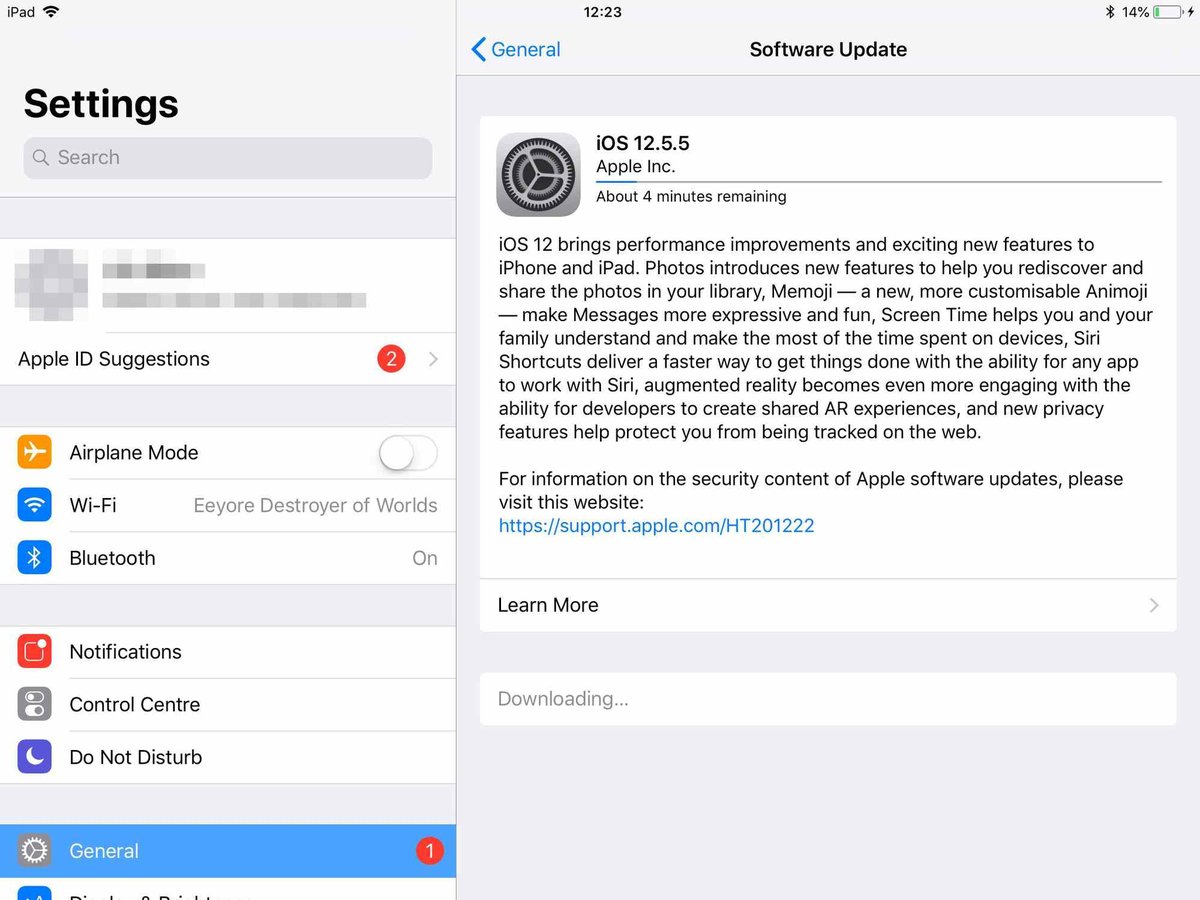
- Go to "Settings" > "General" > "Software Update."
- Your iPad will check for available updates. If one is found, you'll see an option to "Download and Install."
- Tap "Download and Install" and follow the on-screen prompts. Your iPad will restart during the process.
Before You Update: A Few Smart Steps
A little preparation can prevent potential headaches:
- Back Up Your iPad: This is the most critical step. While updates are generally safe, unforeseen issues can occur. Back up your iPad to iCloud or your computer (via Finder on Mac or iTunes on Windows) before initiating any major update. This ensures your photos, documents, and settings are safe.
- Clear Some Space: Make sure you have enough free storage on your iPad for the update file. You can check your storage in "Settings" > "General" > "iPad Storage." Delete unnecessary apps, photos, or videos if space is tight.
- Stay Connected: Maintain a stable Wi-Fi connection throughout the download and installation process. Interruptions can corrupt the download.
What to Do If Your iPad Can't Update Further
If your iPad has reached its maximum iPadOS version, it doesn't mean it instantly turns into a brick. It simply means you won't receive new features or security updates from that point forward.
- Security Risks: This is the primary concern. Without security patches, your iPad becomes more vulnerable to malware and exploits over time. Be extra cautious about browsing suspicious websites or clicking unknown links. Consider using a reputable VPN for an added layer of security when browsing on public Wi-Fi.
- App Compatibility: Eventually, new app versions might require an iPadOS newer than your device supports. You might find certain apps stop working or can no longer be updated. Older versions of apps, however, often remain functional.
- Performance: While your device won't slow down because of an update, newer apps and web content might become more demanding than your older hardware can handle efficiently.
- Consider an Upgrade: If security and access to the latest apps are paramount, it might be time to consider upgrading to a newer iPad. This doesn't mean your old iPad is useless; it can still be repurposed.
Living with an Older iPad: Tips and Tricks
Even if your iPad has hit its software ceiling, it can still be a valuable device for many years. You just need to adjust your expectations and usage patterns.
Extending the Life of Your "Legacy" iPad
- Focus on Existing Apps: Most apps will continue to function on your current iPadOS version for a considerable time. Enjoy the apps you already have.
- Basic Tasks: Older iPads are still perfectly capable for web browsing (with caution for security), email, reading e-books, playing less demanding games, and streaming media.
- Manage Storage & Performance: Keep your storage lean by deleting unused apps and old media. Restart your iPad regularly to clear RAM and improve responsiveness.
- Stay Updated on Current Apps: While the OS won't update, individual app developers might still release compatible updates for a while, offering bug fixes and minor improvements. Check the App Store for these.
Repurposing Your Device
An iPad that no longer receives updates can find a second life:
- Dedicated Media Player: Use it solely for Netflix, Spotify, or as a photo frame.
- Smart Home Controller: If compatible with your smart home ecosystem, it can serve as a dedicated wall-mounted control panel.
- Kids' Device: For younger children, an older iPad is perfect for educational games or pre-downloaded videos, without the worry of damaging a brand-new device. Just ensure content is managed and internet access is supervised.
- Digital Cookbook: Keep it in the kitchen for recipes.
- Recycling: When it truly reaches end-of-life, explore Apple's recycling programs or local electronics recycling options to dispose of it responsibly.
Beyond the Charts: Important Considerations
While compatibility charts provide clear answers, there are nuances to understand that affect your overall iPad experience.
Apple's Support Cycle Philosophy
Apple typically provides major iPadOS updates to devices for approximately 5-7 years from their release date. However, this isn't a hard-and-fast rule, and specific models can vary. The consistency of Apple's silicon (A-series and now M-series chips) has allowed for longer support windows compared to many other tablet manufacturers. This longevity is a significant advantage for iPad users, extending the usable life and value of their investment.
"Compatible" Doesn't Always Mean "Full Features"
Just because your iPad can run the latest iPadOS doesn't guarantee access to every single new feature. Many advanced functionalities, especially those relying on machine learning, augmented reality, or specific graphics capabilities, are often exclusive to newer models with the latest processors and hardware. For instance, advanced Stage Manager features might be limited to iPads with M-series chips, even if an older Pro model can run iPadOS 17. Always check feature-specific compatibility if a particular new function is your main reason for updating.
Always Verify with Apple's Official Resources
While this guide provides comprehensive information, the tech landscape is constantly changing. New iPads are released, and iPadOS updates roll out annually. For the most up-to-date and definitive compatibility information, always refer to Apple's official support website. They are the ultimate source of truth for their products.
Your iPad, Your Journey: Making Informed Decisions
Navigating the world of iPad generations and software updates might seem daunting at first, but with the right information, it becomes a clear path. You've learned how to identify your iPad, understood why updates are crucial for security and performance, and explored detailed compatibility charts. You also know what to expect from the latest iPadOS versions and how to keep an older device functional and secure.
Ultimately, your iPad’s journey with software updates is unique to its hardware. Whether you're enjoying the cutting edge of iPadOS 17, anticipating iPadOS 18, or skillfully managing an older device, you're now equipped with the knowledge to make informed decisions. Keep your iPad updated for as long as it's supported, understand its limitations when it reaches its update ceiling, and remember that even older hardware can still offer significant value. Your iPad is a powerful tool; knowing its compatibility ensures you get the most out of it every single day.